Creating your app
# listing 1: creating_a_window_1.py
# Only needed for access to command line arguments
import sys
from PyQt6.QtWidgets import QApplication, QWidget


# You need one (and only one) QApplication instance per application.
# Pass in sys.argv to allow command line arguments for your app.
# If you know you won't use command line arguments QApplication([]) works too.
app = QApplication(sys.argv)

# Create a Qt widget, which will be our window.
window = QWidget()
window.show()   # IMPORTANT!!!!! Windows are hidden by default.

# Start the event loop.
app.exec()

# Your application won't reach here until you exit and the event loop has stopped.
$ python creating_a_window_1.py
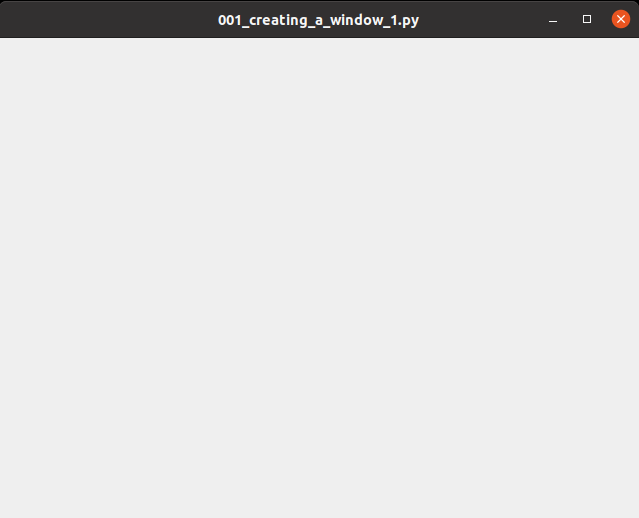
Fig 1. Creating a window
Stepping through the code
-
QApplication, the application handler -
QWidget, a basic empty GUI widget - The main modules for Qt are
QtWidgets,QtGuiandQtCore -
sys.argv, which is Python list containing the command line arguments passed to the application - In Qt all top level widgets are windows
- Widgets without a parent are invisible by default
-
app.exec_()to start up the event loop
What's the event loop
- The core of every Qt Applications is the
QApplicationclass. - Every application needs one — and only one —
QApplicationobject to function. - This object holds the event loop of your application — the core loop which governs all user interaction with the GUI.
- There is only one running event loop per application.
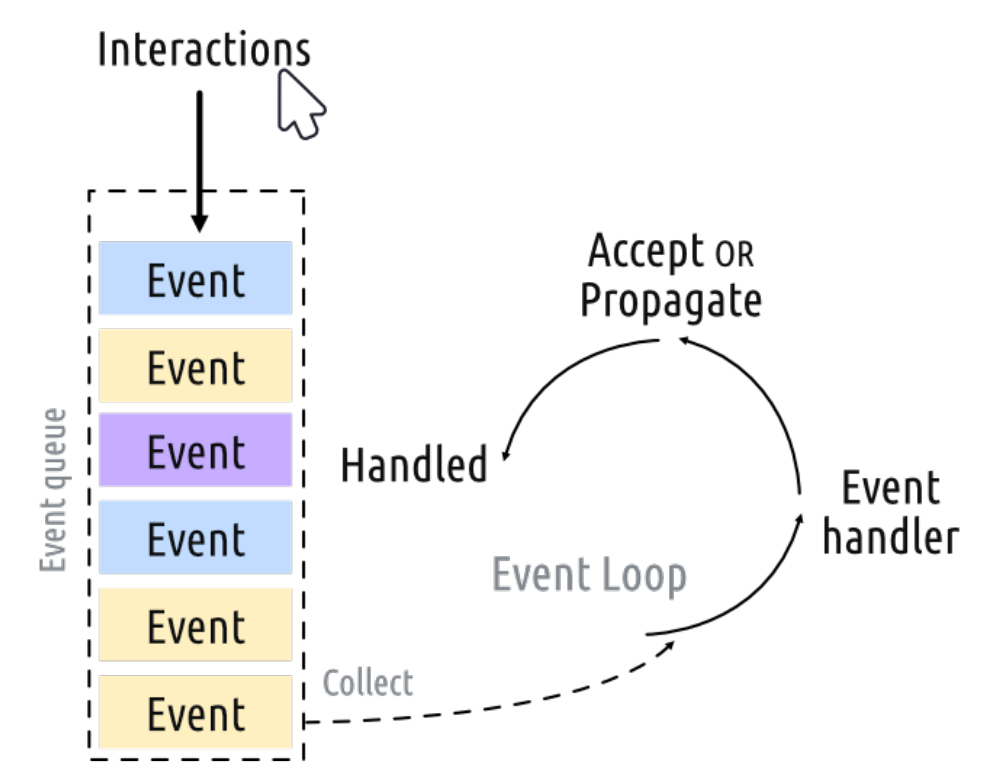
Fig 2. Event loop
The
QApplicationclass
QApplicationholds the Qt event loop- One
QApplicationinstance required- You application sits waiting in the event loop until an action is taken
- There is only one event loop at any time
QMainWindow
# listing 2: creating_a_window_2.py
import sys
from PyQt6.QtWidgets import QApplication, QPushButton

app = QApplication(sys.argv)

window = QPushButton("Push Me")
window.show()

app.exec()
$ python creating_a_window_2.py

Fig 3. A window with a single push-able button
- the ability to nest widgets within other widgets using layouts means you can construct complex UIs inside an empty
QWidget - the
QMainWindow, a pre-made widget which provides a lot of standard window features you’ll make use of in your apps, including toolbars, menus, a statusbar, dockable widgets and more
$ python creating_a_window_3.py
Fig 4. MainWindow
If you want to create a custom window, the best approach is to subclass QMainWindow and then include the setup for the window in the __init__ block. This allows the window behavior to be self contained.
# Listing 4: creating_a_window_4.py
import sys
from PyQt6.QtWidgets import QApplication, QMainWindow, QPushButton


# Subclass QMainWindow to customize your application's main window
class MainWindow(QMainWindow):
    def __init__(self):
        super().__init__()

        self.setWindowTitle("My App")

        button = QPushButton("Press Me!")

        # Set the central widget of the window.
        self.setCentralWidget(button)


app = QApplication(sys.argv)

window = MainWindow()
window.show()

app.exec()
$ python creating_a_window_4.py
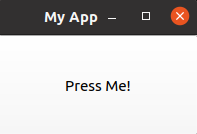
Fig5. QMainWindow with a single QPushButton on Windows
When you subclass a Qt class you must always call the super __init__ function to allow Qt to set up the object.
Sizing windows and widgets
# Listing 5: creating_a_window_end.py
import sys
from PyQt6.QtWidgets import QApplication, QMainWindow, QPushButton
from PyQt6.QtCore import QSize


class MainWindow(QMainWindow):
    def __init__(self):
        super().__init__()

        self.setWindowTitle("My App")
        button = QPushButton("Press Me!")
        self.setFixedSize(QSize(400, 300))
        self.setCentralWidget(button)


app = QApplication(sys.argv)

window = MainWindow()
window.show()

app.exec()
$ python creating_a_window_end.py
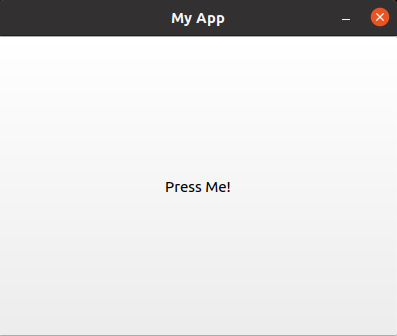
Fig 6. A fixed-size (400x300 pixels) window
